


Enterprise Chat AI: Architecture and Demo
In this blog series, we will delve into the realm of Enterprise Chat AI, exploring its architecture, design, and implementation.
✅In this first part, we will delve into the architecture of Enterprise Chat AI and showcase a demo application to explore its functionality.
✅In this second part of the blog, we will explore the process of setting up DevOps pipelines, productionizing our Chat AI solution, reviewing Scaling, Cost and Security measures.
✅In the final part of our blog series, we will delve into the realm of GenAI Ops, focusing on Load Testing, Evaluation , Monitoring and managing Enterprise Chat AI applications.
By following this blog series, you will gain a comprehensive understanding of Enterprise Chat AI, its architecture, development process, monitoring process and best practices.
Overview:
This blog series will consist of the following content.
Part1: Enterprise Chat AI: Architecture and Demo
- Architecture overview: Architecture overview
- How does the solution work?
- Chat AI features: list Chat AI features.
- Demo: We will walk-through the Chat AI set up, and deployment steps (local deployment).
- Validate Chat AI: Validate the deployed Chat AI, configure the Answer generation settings and review the output based on Semantic/without Semantic.
Part 2: Enterprise Chat AI: Guidelines for productionizing (DevOps setup, Scaling, Cost optimization, Security)
- DevOps pipeline setup: We will dive into how to set up CI/CD pipeline for the entire solution.
- Productionizing: Guidelines for productionizing this Chat AI, review Security (Auth, networking), Document Security, Resource configuration (OpenAI capacity-> token per minute, Azure Storage-> Standard_ZRS, Azure AI Search->semanticSearch: Standard, App Service)
- Cost consideration: Guide for pricing tier for this solution.
Private: Part3: Enterprise Chat AI: Customize data, UI, Re-Evaluate, Load testing, Monitoring.
- Customize data, UI
- Re-Evaluate
- Load testing
- Monitoring
Let’s explore Part1 of Enterprise Chat AI. (Enterprise Chat AI: Architecture and Demo)
We will explore a few approaches for creating ChatGPT-like experiences over your own data using the Retrieval Augmented Generation pattern. It uses Azure OpenAI Service to access a GPT model (gpt-35-turbo), and Azure AI Search for data indexing and retrieval.
In this sample application we use a fictitious company called Contoso Electronics, and the experience allows its employees to ask questions about the benefits, internal policies, as well as job descriptions and roles.
Architecture
Architecture of the chat app is shown in the following diagram:

Key components of the architecture include:
- A web application to host interactive chat experience.
- An Azure AI Search resource to get answers from your own data.
- An Azure OpenAI Service to provide:
- Keywords to enhance the search over your own data.
- Answers from the OpenAI model.
- Embeddings from the ada model
Solution Tenants:
App Service, Cognitive Search, Open AI, Azure Storage:
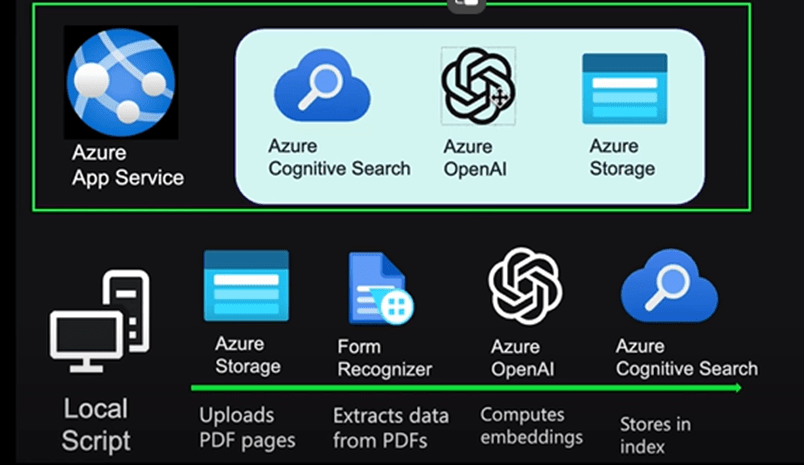
Below is the architecture used for this app. It deploys your application to Azure App Service and the app service interacts with Cognitive Search and Open AI instance, Blob storage that’s where all the PDFs are stored.
Security:
Instead of using keys to access this storage, identities are used here and there are no keys in our environment. Its Enterprise best practice that makes our app more secure in terms of how we get data into the app.
Local Script (How to get data into the app):
Local script is used for doing this, below are the steps:
- Load some data into a local folder.
- Run the script it will upload those documents to blob storage.
- It will use asure document intelligence to analyze them use Azure Open AI to compute
embeddings and then insert both the text and the embeddings into Cognitive search.
- You can also optionally insert ACL’s at this point if you’re doing access control the easiest way to get started with deploying this to your own your account is to use GitHub code spaces which will set up the environment with everything you need then once you’re logged into your Zer account
- run a up the first thing it does is provision the resources like app service and cognitive search and open AI then it ingests the sample documents into blob storage and cognitive search
- Finally it deploys both the backend and front-end code to as your app service once you’ve got it successfully deployed with the sample data.
Features
- Chat and Q&A interfaces
- Explores various options to help users evaluate the trustworthiness of responses with citations, tracking of source content, etc.
- Shows possible approaches for data preparation, prompt construction, and orchestration of interaction between model (OpenAI) and retriever (AI Search)
- Settings directly in the UX to tweak the behavior and experiment with options
- Performance tracing and monitoring with Application Insights
Demo (Summary)
- Configure and Build Enterprise Chat AI.
- Deploy a Chat App to Azure.
- Get answers about employee benefits.
- Change settings to change the behavior of responses.
Prerequisites:
- Azure Subscription
- Azure subscription with access enabled for the Azure OpenAI service
- You can request access with this form
- Azure account permissions:
- Your Azure account must have
Microsoft.Authorization/roleAssignments/writepermissions, such as Role Based Access Control Administrator, User Access Administrator, or Owner
- Your Azure account also needs Microsoft.Resources/deployments/write permissions on the subscription level.
- Your Azure account must have
Demo (step-by-step)
You can configure this sample Enterprise Chat AI using GitHub codespace or Visual Studio Code.
GitHub Codespaces runs a development container managed by GitHub with Visual Studio Code for the Web as the user interface. For the most straightforward development environment, you can use GitHub Codespaces so that you have the correct developer tools and dependencies preinstalled to complete this solution.
I will be using the second option (using Visual Studio Code) to configure and deploy this Chat AI solution.
The Dev Containers extension for Visual Studio Code requires Docker to be installed on your local machine. The extension hosts the development container locally using the Docker host with the correct developer tools and dependencies preinstalled to complete this setup.
Install Dev Containers extension:

Configure or copy the GitHub repo: https://github.com/Azure-Samples/azure-search-openai-demo
Login to your Azure account:
azd auth login
Create a new azd environment:
azd env new

azd init -t azure-search-openai-demo
Run azd up
This will provision Azure resources and deploy this sample to those resources, including building the search index based on the files found in the ./data folder.
azd up

Ingestion, Extract, Splitting process…


Ingesting ‘Financial Market Analysis Report 2023.pdf’


Congratulations! After the application has been successfully deployed, you see a URL displayed in the terminal.

Resources provisioned for this Chat App:

Now, it’s time to ask your AI chat!
Ask with your AI Chat:
Once you type the Chat AI url, you will see the screen below.

In the browser, select or enter What happens in a performance review? in the chat text box.


Understanding how Answer is generated.
Configure Answer Generation:
You can use chat app settings to change the behavior of responses. The intelligence of the chat is determined by the OpenAI model and the settings that are used to interact with the model.
The below image shows different settings.

Understanding these Settings.
| Setting | Description | Best Practices | Use Case |
| Override prompt | Overrides the prompt used to generate the answer based on the question and search results. | Use when you need to provide a specific context or direction for the chatbot’s responses. | Useful in scenarios where you want to guide the conversation flow or ensure consistency in responses. |
| Temperature | Sets the temperature of the request to the LLM that generates the answer. Higher temperatures result in more creative responses, but they may be less grounded. | Adjust based on the desired balance between creativity and accuracy. Higher temperatures for more creative tasks, lower for factual queries. | Ideal for brainstorming sessions or when generating novel ideas is required. |
| Minimum search score | Sets a minimum score for search results coming back from Azure Al search. The score range depends on whether you’re using hybrid (default), vectors only, or text only. | Use to filter out low-quality search results and ensure high relevance of information provided by the chatbot. | Essential for maintaining high-quality interactions and providing accurate information. |
| Minimum reranker score margin | Sets a minimum score for results coming back from Azure Search. The score range depends on how much better your top result needs to be compared to all other results in order to avoid re-ranking them by an LLM (language learning model). | Use to fine-tune the selection of top results and prevent less relevant results from being ranked higher than necessary. | Beneficial when dealing with large datasets where precision in ranking is crucial. |
| Minimum reranker score threshold | Sets a minimum threshold for scores from Azure Search necessary for a result to pass through to an LLM for re-ranking. This setting can filter out low-quality search results before they reach an LLM. | Use to ensure that only high-quality results are considered for re-ranking, improving overall response quality. | Important for scenarios where response quality is paramount, such as customer support or professional services. |
| Exclude category | Specifies a category to exclude from processing content tabs of categories you can define like these: Products returned in Thought/Products and Supporting Content tabs are not included in these default set categories. | Use when certain topics or categories should not be considered by the chatbot during interactions. | Useful for avoiding sensitive topics or irrelevant content in conversations. |
| Use semantic parser for reranking | Enables Azure AI’s LLM semantic ranker mode that re-ranks search results based on semantic similarity to capture all aspects relevant instead of a surface-level comparison expected from a standard search engine query response. | Use when you need more nuanced understanding and ranking of search results based on their semantic relevance to the query. | Ideal for complex queries where understanding context and meaning is essential, such as legal or medical inquiries. |
| Use semantic parser for query rewriting | Sends queries to a specific LLM instance if there are queries Semantic can isolate specific entities in addition to processing standard keyword-based queries ensuring a robust response is extracted from available data sources across your networked enterprise resources. | Use when you need to extract detailed information from queries that contain specific entities or require advanced processing capabilities. | Beneficial for detailed data retrieval tasks, such as extracting information from structured documents or databases. |
| Stream chat completion responses | Continuously streams the response to the chat UI as it is generated. | Use when real-time interaction and immediate feedback are important for user experience. | Suitable for live customer service scenarios where quick responses are necessary, such as during peak hours or urgent support requests. |
These settings are crucial for fine-tuning an Enterprise Chat AI system to ensure it provides relevant and accurate responses while maintaining a natural and engaging conversation flow.
Let’s try to explore different settings and results.
With the Semantic ranker
In the Settings tab, deselect Use semantic ranker for retrieval.
Ask the same question again.


Without the Semantic ranker:

What is the difference in the answers?
| Aspect | With Semantic Ranker | Without Semantic Ranker |
| Opportunity for Discussion | Employees will have the opportunity to discuss their successes and challenges in the workplace. | Employees have the opportunity to discuss their successes and challenges in the workplace. |
| Feedback | The review will provide positive and constructive feedback to help employees develop and grow in their roles. | Positive and constructive feedback is provided to help employees develop and grow in their roles. |
| Written Summary | The employee will receive a written summary of the performance review, which will include a rating of their performance, feedback, and goals and objectives for the upcoming year. | A written summary of the performance review is given, including a rating of performance, feedback, and goals for the upcoming year. |
| Nature of Review | The performance review is a two-way dialogue between managers and employees. | The review is a two-way dialogue between managers and employees. |
The main difference lies in the use of “will” versus “have” which indicates a future event versus a general statement, respectively. However, the overall meaning remains consistent between both versions.
Resource Clean up
Run the following Azure Developer CLI command to delete the Azure resources and remove the source code:
purge: Deleted resources are immediately purged. This allows you to reuse the Azure OpenAI TPM.
force: The deletion happens silently, without requiring user consent.

How does it work?
It’s time now to understand how Chat AI works.
Once you configure this Chat AI solution, you will see the UI below. This chat app provides a friendly interface for chatting with Enterprise data using Azure cognitive search and open AI.
Let’s ask a question about healthcare plans after a brief wait, we receive an answer in this answer we can see that chat has summarize the information from citations and provided sources.
We can click on each of these and see where it actually got this information from as we can see in this PDF it describes what is included in the healthcare plan, so ChatGPT and Cognitive search have sorted through these documents for us.

See the below flow to understand the working of this solution.

When the user asks a question that question is sent from the front end to the back end and the back end will take the question and use that to search as your cognitive search.
It can use either vectors or keywords or the combination of the two which is the best it can also optionally use a semantic ranker on top for the optimal ranking of the results.
So typically, it will get between three to five results and then it will send those results plus the original user question to a chat GPT model usually 3.5 or 4 and then we get back a response that contains an answer as well as source.
Code-behind
1. Typescript code to make requests to the Back end:
Below is the typescript code that makes requests to the back end sending along the user’s message and any other information about how they’d like the response.

2. Backend code in Python that processes this request:
Below is the backend code in Python that processes that request, optionally looks for authentication claims if they have configured ACLS and then sends that to a particular retrieval augmented generation approach for this example.

3. Retrieve then Read Approach:
This is the retrieve then read approach and this is what’s used by the ask.


Conclusion
In this blog series (First Part) we delve into the realm of Enterprise Chat AI, explored its architecture, designed, showcased a demo application to explore its functionality and How the solution works.
By following this blog series, you will gain a comprehensive understanding of Enterprise Chat AI, its architecture, development process, and best practices.
For more information on best practices of building chat applications, please refer to this article.
References:
Get started with the Python enterprise chat sample using RAG – Python on Azure | Microsoft Learn