
Overview:
This post uses a sample React single-page app (SPA) to show you how to sign in users by using the authorization code flow with Proof Key for Code Exchange (PKCE). It uses the Microsoft Authentication Library for JavaScript to handle authentication.
Protocol details
The OAuth 2.0 authorization code flow is described in section 4.1 of the OAuth 2.0 specification. Apps using the OAuth 2.0 authorization code flow acquire an access_token to include in requests to resources protected by the Microsoft identity platform (typically APIs). Apps can also request new ID and access tokens for previously authenticated entities by using a refresh mechanism.
This diagram shows a high-level view of the authentication flow:
Redirect URIs for single-page apps (SPAs)
Redirect URIs for SPAs that use the auth code flow require special configuration.
- Add a redirect URI that supports auth code flow with PKCE and cross-origin resource sharing (CORS): Follow the steps in Redirect URI: MSAL.js 2.0 with auth code flow.
- Update a redirect URI: Set the redirect URI’s
typetospaby using the application manifest editor in the Microsoft Entra admin center.
The spa redirect type is backward-compatible with the implicit flow. Apps currently using the implicit flow to get tokens can move to the spa redirect URI type without issues and continue using the implicit flow.
Redirect URI: MSAL.js 2.0 with auth code flow
Follow these steps to add a redirect URI for an app that uses MSAL.js 2.0 or later. MSAL.js 2.0+ supports the authorization code flow with PKCE and CORS in response to browser third party cookie restrictions. The implicit grant flow is not supported in MSAL.js 2.0+.
- In the Microsoft Entra admin center, select the app registration you created earlier in Create the app registration.
- Under Manage, select Authentication > Add a platform.
- Under Web applications, select the Single-page application tile.
- Under Redirect URIs, enter a redirect URI. Do NOT select either checkbox under Implicit grant and hybrid flows.
- Select Configure to finish adding the redirect URI.
You’ve now completed the registration of your single-page application (SPA) and configured a redirect URI to which the client will be redirected and any security tokens will be sent. By configuring your redirect URI using the Single-page application tile in the Add a platform pane, your application registration is configured to support the authorization code flow with PKCE and CORS.
Demo
Prerequisites
- An Azure account with an active subscription. If you don’t already have one, Create an account for free.
- Node.js
- Visual Studio 2022 or Visual Studio Code
Demo (Summary);
- Register the application and record identifiers
- Add a platform redirect URI
- Clone or download the sample application
- Configure the project
- Run the application and sign in
- Validate
Demo(Step-by-step)
Register the application and record identifiers
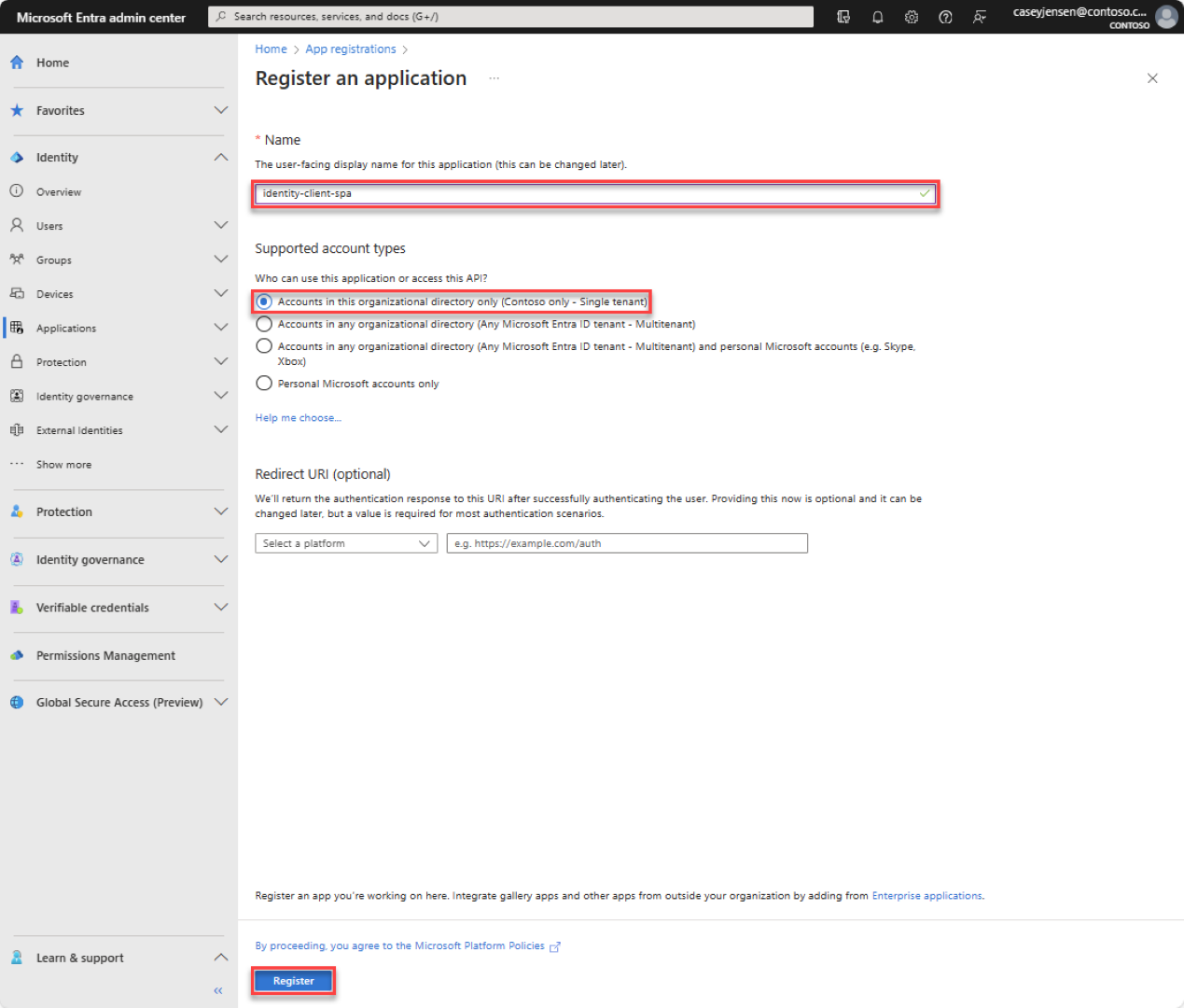
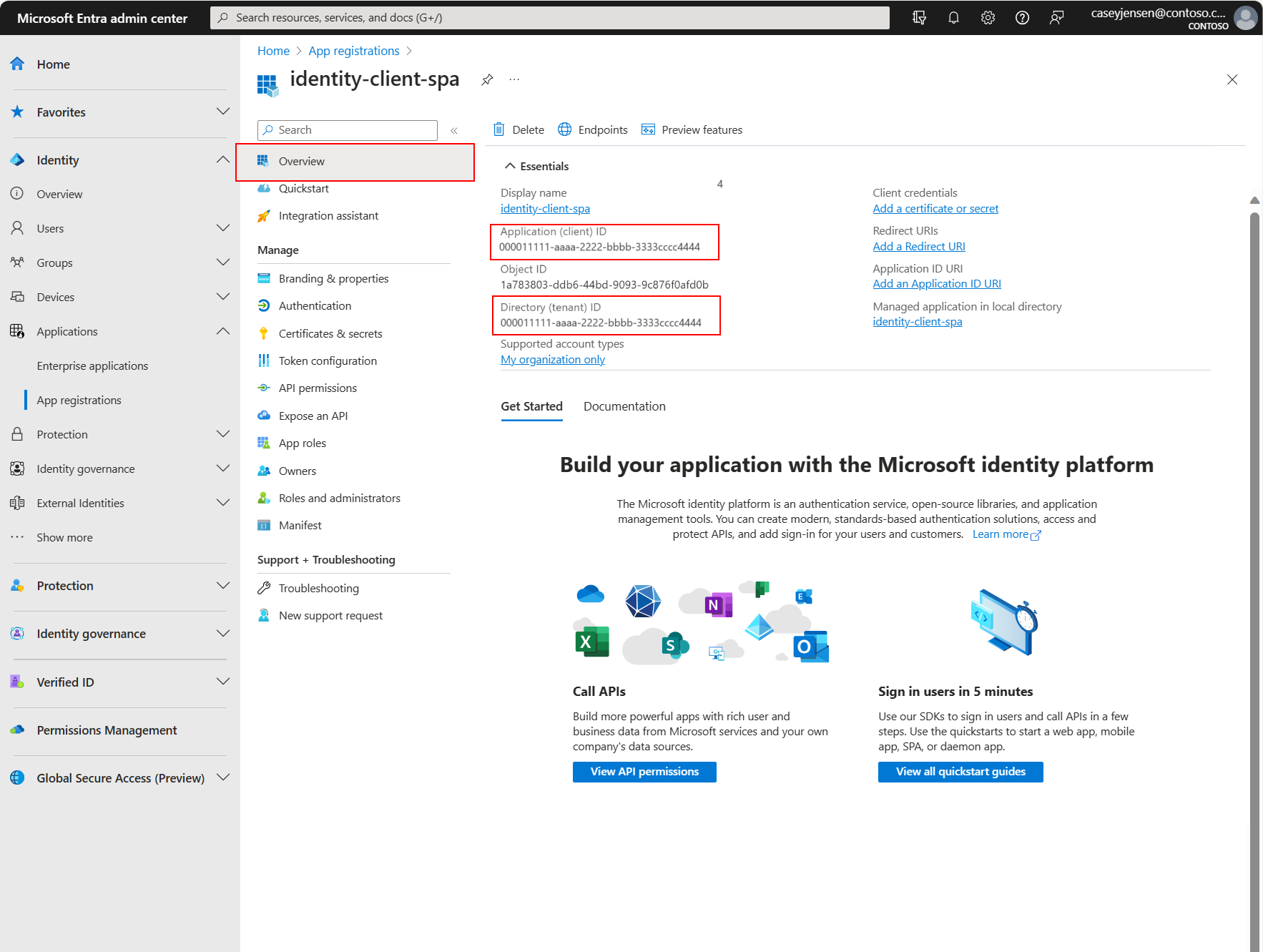
To complete registration, provide the application a name, specify the supported account types, and add a redirect URI. Once registered, the application Overview pane displays the identifiers needed in the application source code.
- Sign in to the Microsoft Entra admin center.
- If you have access to multiple tenants, use the Settings icon in the top menu to switch to the tenant in which you want to register the application from the Directories + subscriptions menu.
- Browse to Identity > Applications > App registrations, select New registration.
- Enter a Name for the application, such as identity-client-spa.
- For Supported account types, select Accounts in this organizational directory only. For information on different account types, select the Help me choose option.
- Select Register.
- The application’s Overview pane is displayed when registration is complete. Record the Directory (tenant) ID and the Application (client) ID to be used in your application source code.
Note
The Supported account types can be changed by referring to Modify the accounts supported by an application.
Add a platform redirect URI
To specify your app type to your app registration, follow these steps:
- Under Manage, select Authentication.
- On the Platform configurations page, select Add a platform, and then select SPA option.
- For the Redirect URIs enter
http://localhost:3000. - Select Configure to save your changes.
Clone or download the sample application
To obtain the sample application, you can either clone it from GitHub or download it as a .zip file.
- To clone the sample, open a command prompt and navigate to where you wish to create the project, and enter the following command:
git clone https://github.com/Azure-Samples/ms-identity-docs-code-javascript.git- Download the .zip file. Extract it to a file path where the length of the name is fewer than 260 characters.
Configure the project
- In your IDE, open the project folder, ms-identity-docs-code-javascript/react-spa, containing the sample.
- Open src/authConfig.js and update the following values with the information recorded earlier in the admin center.
JavaScript
JavaScript
/*
 * Copyright (c) Microsoft Corporation. All rights reserved.
 * Licensed under the MIT License.
 */

import { LogLevel } from "@azure/msal-browser";

/**
 * Configuration object to be passed to MSAL instance on creation.
 * For a full list of MSAL.js configuration parameters, visit:
 * https://github.com/AzureAD/microsoft-authentication-library-for-js/blob/dev/lib/msal-browser/docs/configuration.md
 */

export const msalConfig = {
    auth: {
        clientId: "Enter_the_Application_Id_Here",
        authority: "https://login.microsoftonline.com/Enter_the_Tenant_Info_Here",
        redirectUri: "http://localhost:3000",
    },
    cache: {
        cacheLocation: "sessionStorage", // This configures where your cache will be stored
        storeAuthStateInCookie: false, // Set this to "true" if you are having issues on IE11 or Edge
    },
    system: {
        loggerOptions: {
            loggerCallback: (level, message, containsPii) => {
                if (containsPii) {
                    return;
                }
                switch (level) {
                    case LogLevel.Error:
                        console.error(message);
                        return;
                    case LogLevel.Info:
                        console.info(message);
                        return;
                    case LogLevel.Verbose:
                        console.debug(message);
                        return;
                    case LogLevel.Warning:
                        console.warn(message);
                        return;
                    default:
                        return;
                }
            }
        }
    }
};

/**
 * Scopes you add here will be prompted for user consent during sign-in.
 * By default, MSAL.js will add OIDC scopes (openid, profile, email) to any login request.
 * For more information about OIDC scopes, visit:
 * https://docs.microsoft.com/en-us/azure/active-directory/develop/v2-permissions-and-consent#openid-connect-scopes
 */
export const loginRequest = {
    scopes: ["User.Read"]
};

/**
 * Add here the scopes to request when obtaining an access token for MS Graph API. For more information, see:
 * https://github.com/AzureAD/microsoft-authentication-library-for-js/blob/dev/lib/msal-browser/docs/resources-and-scopes.md
 */
export const graphConfig = {
    graphMeEndpoint: "https://graph.microsoft.com/v1.0/me",
};
clientId– The identifier of the application, also referred to as the client. Replace the text in quotes with the Application (client) ID value that was recorded earlier.authority– The authority is a URL that indicates a directory that MSAL can request tokens from. Replace Enter_the_Tenant_Info_Here with the Directory (tenant) ID value that was recorded earlier.
redirectUri– The Redirect URI of the application. If necessary, replace the text in quotes with the redirect URI that was recorded earlier.
Run the application and sign in
Run the project with a web server by using Node.js:
- To start the server, run the following commands from within the project directory:
npm install

npm start
- Copy the
httpsURL that appears in the terminal, for example,https://localhost:3000, and paste it into a browser. We recommend using a private or incognito browser session. - Follow the steps and enter the necessary details to sign in with your Microsoft account. You’ll be requested an email address so a one time passcode can be sent to you. Enter the code when prompted.
- The application will request permission to maintain access to data you have given it access to, and to sign you in and read your profile. Select Accept. The following screenshot appears, indicating that you have signed in to the application and have accessed your profile details from the Microsoft Graph API.

Conclusion
In summary, this post provides developers with a practical guide to implementing secure sign-in functionality in React SPAs using the Microsoft identity platform. By following the steps outlined in the post, you can enhance your application’s security and seamlessly integrate with Microsoft Graph services.
Happy coding!
🚀🔐👨💻
References:
Quickstart: Sign in to a SPA & call an API – React – Microsoft identity platform | Microsoft Learn
Tutorial: Call an API from a React single-page app – Microsoft identity platform | Microsoft Learn