Overview:
There are 2 different approaches available for working on containerization, and this blog post will focus on option 1, which does not involve the use of a tool like Helm Chart. Option 2 involves using Helm Chart, which offers a simpler and more intuitive process.
In approach 1, the following steps are involved:
1. Prepare Application: This step involves packaging the application into a container image. The application’s dependencies and configuration should be carefully managed to ensure compatibility and stability in the containerized environment.
2. Configure Kubernetes Resources: Next, create the necessary Kubernetes resources, such as deployments and services, to manage the containerized app on AKS. This involves defining the desired state of the containers, their replicas, and the appropriate resource requirements.
3. Deploy Application to AKS: Once the Kubernetes resources are ready, the application can be deployed to AKS. This can be done manually or using an orchestrator tool, such as Azure CLI or Azure Portal.
4. Monitor and Update: After deploying the app, it is important to monitor its performance and continuously update the container image with the latest bug fixes and new features. This can involve using various monitoring tools, such as Azure Monitor, and integrating with container registries to automate the image updates.
While option 2 involves using Helm Chart, approach 1 provides a manual approach to containerizing and hosting an app on AKS. This approach requires additional steps and manual configuration, but it allows for more control over the application’s dependencies and resource requirements.
The sample application used in this tutorial is a basic store front app that includes Kubernetes deployments and services. By following approach 1, users have the option to containerize and host the app manually without the aid of Helm Chart.
Let’s quickly jump to Demo section.
Demo:
Demo (Summary):
Below is the high level steps
- Prepare app for AKS. (Compose Docker)
- Create ACR
- Create AKS
- Run App
- Scale App/Upgrade App
| 1 | Prepare app for AKS. (Compose Docker) | Get the app/Clone; Compose Docker File (means, create the container image, download redis image etc, and start the app local using Docker compose command. docker compose -f docker-compose-quickstart.yml up -d |
| 2 | Create ACR | Create Azure Container Registry, BUILD and PUSH the image to ACR az acr build –registry $ACRNAME –image aks-store-demo/product-service:latest ./src/product-service/ |
| 3 | Create AKS | Create AKS cluster; az aks create \ –resource-group myResourceGroup \ –name myAKSCluster \ –node-count 2 \ –generate-ssh-keys \ –attach-acr <acrName> |
| 4 | Run App | Update the image names in Kubernetes manifest file and include the ACR Login server name. containers: … – name: order-service image: <acrName>.azurecr.io/aks-store-demo/order-service:latest And deploy the App by command kubectl apply -f aks-store-quickstart.yaml Test the app: kubectl get service store-front –watch |
| 5 | Scale App/Upgrade App | kubectl get pods kubectl scale –replicas=5 deployment.apps/store-front Autoscale Pods using Manifest file. spec: maxReplicas: 10 # define max replica count minReplicas: 3 # define min replica count |
Demo: Step by step:
Prerequisites:
Get application code.
The sample application used in this tutorial is a basic store front app including the following Kubernetes deployments and services:

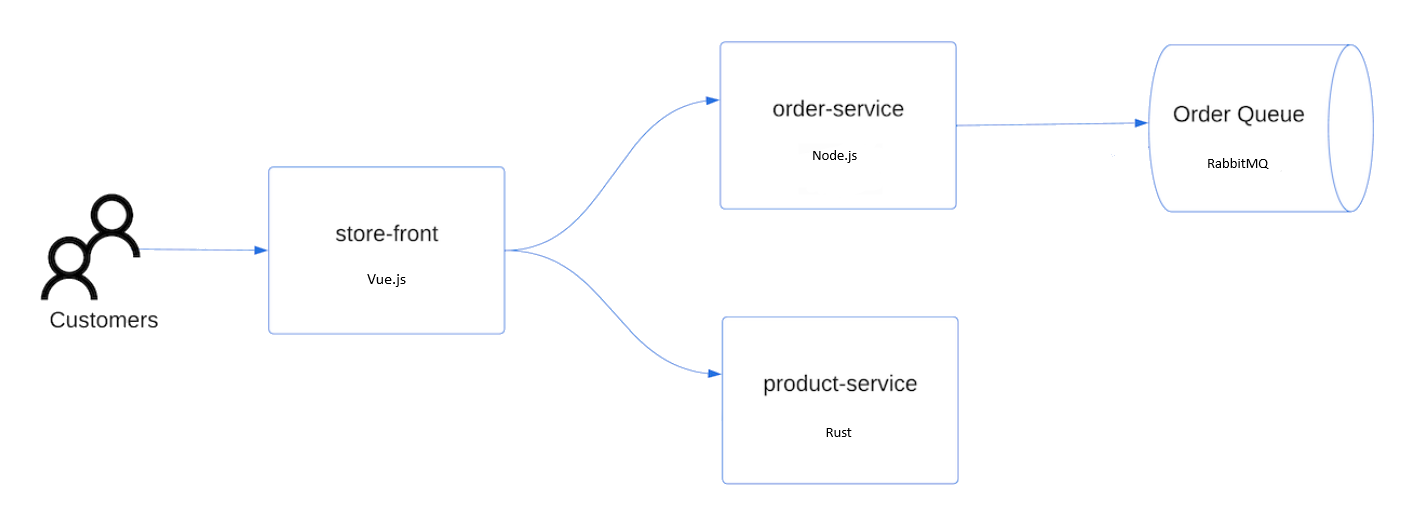
- Store front: Web application for customers to view products and place orders.
- Product service: Shows product information.
- Order service: Places orders.
- Rabbit MQ: Message queue for an order queue.
Demo(Step by step)
1. Prepare app for AKS.
| Activity | Sub-Activity |
| Prepare app for AKS | Get the App/Clone in VSCode |
| Compose Docker File | |
| Create Container images and run app | |
| View All images | |
| View all running images | |
| Test app locally | |
| Clean up only stop |

Or can do at Azure CLI as well.


Option1:
You can create a new file in Azure CLI using Bash command by following these steps:
- Open Azure Cloud Shell or a local install of the Azure CLI.
- Use the vi command followed by the filename to create a new file. For example, if you want to create a file named helloworld, you would use the command:
vi helloworld
- When the file opens, press i to switch to insert mode.
- Type your content into the file.
- Press Esc to exit insert mode.
- Type :wq and then press Enter to save the file and quit1.


Option 2: Execute this in VSCode
Create the container image, download the Redis image, and start the application using the docker compose command.


Check in VSCode

Check in Docker (Local)


2. Create ACR
| Create ACR | Azure CLI |
| Create Resource Group | |
| Build and push container images | |
| List images in container |

You can do it from VSCode as well


Push image from VSCode.

3. Create AKS
- Pre requites
- Create AKS
- Install Kubernetes CLI
- Connect to cluster using kubectl
- Get nodes
az aks create \ --resource-group myResourceGroup \ --name myAKSCluster \ --node-count 2 \ --generate-ssh-keys \ --attach-acr <acrName>4. Run App
- Update the manifest file
- Deploy App
- Test App
Update the image names in Kubernetes manifest file and include the ACR Login server name.
containers:
 ...
- name: order-service
 image: <acrName>.azurecr.io/aks-store-demo/order-service:latest
And deploy the App by command
kubectl apply -f aks-store-quickstart.yaml
Test the app:
kubectl get service store-front --watch
5. Scale App
- Scale manually
- Auto scale
- Autoscale pods using a manifest file
6. Upgrade
- Get available cluster versions
- Upgrade an AKS cluster
- Configure automatic cluster upgrades
- View the upgrade events
- Validate an upgrade
kubectl get pods
kubectl scale --replicas=5 deployment.apps/store-front
Autoscale Pods using Manifest file.
spec:
  maxReplicas: 10 # define max replica count
  minReplicas: 3  # define min replica count
7. Delete
- Delete the cluster
Recap:
explores the steps required to prepare a multi-container application for deployment in the Azure Kubernetes Service (AKS). We will follow these steps:
1. Get Application Code:
– Clone a sample application from GitHub.
– The sample application includes Kubernetes deployments and services for a basic store front app, including a web application, product service, order service, and Rabbit MQ message queue.
– The goal is to build and test this multi-container application locally using Docker Compose.
2. Review Docker Compose File:
– The application uses a docker-compose-quickstart.yaml file.
– It defines services like RabbitMQ, order service, product service, and storefront.
– Each service specifies its image, ports, health checks, and environment variables.
3. Create Container Images and Run Application:
– Build container images from the sample application source.
– Test the multi-container application in your local Docker environment.
4. Next Steps:
– After completing these steps, you will have successfully prepared your application for deployment in AKS.
By following these steps, you will have successfully prepared a multi-container application for deployment in Azure Kubernetes Service (AKS). You can now deploy your application to AKS and enjoy the benefits of container orchestration.
Conclusion
In subsequent tutorials, we’ll upload the container image to an Azure Container Registry (ACR) and deploy it into an AKS cluster.
Conclusion: The journey to AKS begins with local development and testing. By leveraging Docker Compose and understanding the application’s structure, you’re well-prepared to take the next steps—deploying your application to AKS and benefiting from its managed Kubernetes service capabilities.
Happy containerizing! 🚀
References:
https://learn.microsoft.com/en-us/azure/aks/tutorial-kubernetes-prepare-app?tabs=azure-cli
https://learn.microsoft.com/en-us/azure/aks/tutorial-kubernetes-prepare-app
[…] To know more about this, click here: Configure and deploy an app to Azure Kubernetes Services (AKS), without Helm Chart […]